Still using legacy green-screen tools like PDM and SEU for IBM i (AS/400) development? These outdated interfaces slow productivity, limit remote access, and make teamwork more difficult. In fact, 70% of IBM i shops are actively looking for better solutions, according to the 2026 IBM i Marketplace Survey Results by Fortra.
Visual Studio Code (VS Code) is a free, open-source editor from Microsoft that works seamlessly with IBM i through official extensions. It offers a modern interface, real-time collaboration, and built-in Git support. This helps teams cut development time in half.
At Saamsha Technologies, we help businesses upgrade their AS/400 systems to fast, efficient platforms. VS Code combined with IBM i extensions reduces iteration time by up to 2x.
This guide covers VS Code basics, IBM i (AS/400) pain points, setup steps, key benefits, a sample RPGLE app, Saamsha’s expertise, and FAQs. Ready to move beyond the green screen?
What is Visual Studio Code (VS Code)?
VS Code is a free, lightweight, and open-source code editor built by Microsoft. It runs on Windows, macOS, and Linux, making it accessible to developers across platforms.
Key features include smart syntax highlighting, IntelliSense for code auto-completion, built-in Git support, and a large extension marketplace. Developers can customise it to fit almost any programming environment.
For IBM i (AS/400) users, VS Code becomes a powerful development tool once you install extensions like “IBM i Languages” by Barrett Ott and “Code for IBM i.” These extensions add full support for RPGLE, CLLE, COBOL, and more on your AS/400 system.
Compared to traditional tools and even heavier IDEs like RDi, VS Code offers a faster, more flexible, and highly customizable development experience, making it well-suited for modern IBM i environments without requiring additional hardware investments.
What Are the Key Benefits of Using VS Code for IBM i Development?
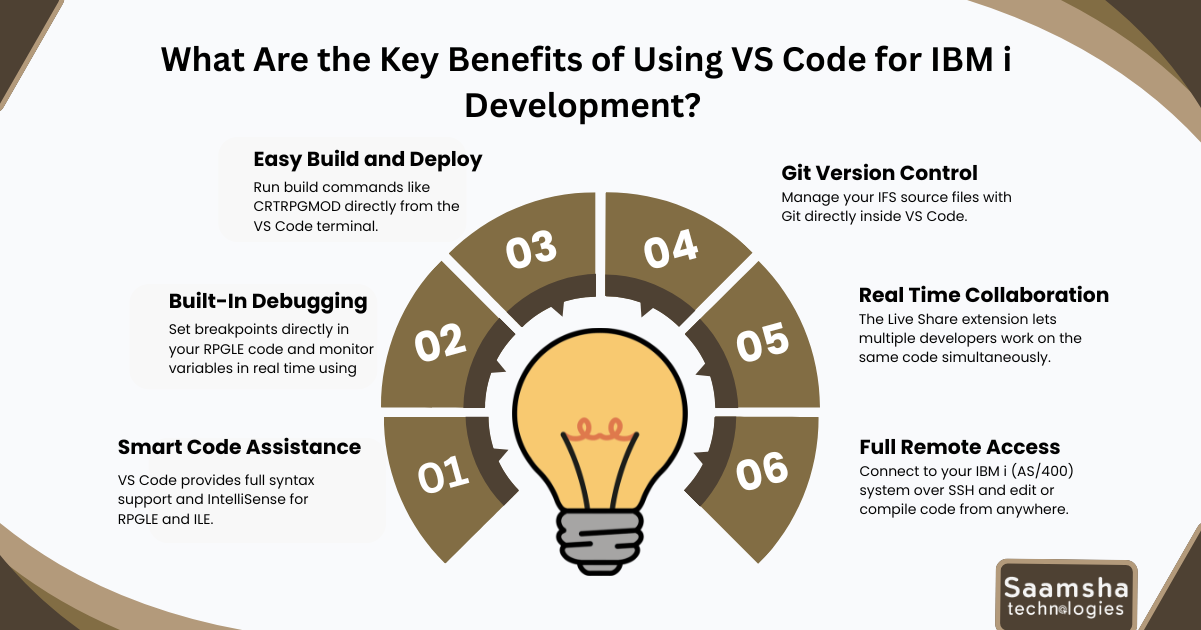
If you are wondering how VS Code improves IBM i (AS/400) development workflows, the answer lies in features like IntelliSense, built-in Git, SSH remote access, and real-time collaboration.
- Smart Code Assistance
VS Code provides full syntax support and IntelliSense for RPGLE and ILE. As you type commands like dcl-f, it automatically suggests completions, reduces errors, and saves time.
- Built-In Debugging
Set breakpoints directly in your RPGLE code and monitor variables in real time using the Code for IBM i extension. Finding and fixing bugs becomes much faster and simpler.
- Easy Build and Deploy
Run build commands like CRTRPGMOD directly from the VS Code terminal. This eliminates the need to switch between multiple interfaces, improving development continuity.
- Git Version Control
Manage your IFS source files with Git directly inside VS Code. Track changes, review history, and collaborate with your team without manually exporting files from libraries.
- Real Time Collaboration
The Live Share extension lets multiple developers work on the same code simultaneously. It makes team projects smoother and more efficient.
- Full Remote Access
Connect to your IBM i (AS/400) system over SSH and edit or compile code from anywhere. Remote work becomes completely hassle-free.
How to Install VS Code and Connect with IBM i System- Detailed Overview
Modern IBM i development becomes significantly easier with Visual Studio Code (VS Code). Follow these steps to set up your environment and start working efficiently.
- Step 1: Download and Install VS Code
Visit the official VS Code website and download the installer for your operating system. Run the installer and proceed with the default settings, which are sufficient for most users. Optionally, you can enable features like “Open with Code” to quickly open files directly from your file explorer, improving your workflow.
- Step 2: Launch VS Code
Once installed, open VS Code. You’ll notice a clean interface with an Activity Bar on the left-hand side. This panel is where you’ll access extensions, file explorer, and IBM i tools throughout your development process.
- Step 3: Install IBM i Extension
Click on the Extensions icon in the Activity Bar and search for “Code for IBM i” or the IBM i Development Pack. Install the extension, and once completed, you’ll see a new IBM i icon appear in the sidebar. This extension enables communication between VS Code and your IBM i system.
- Step 4: Connect to IBM i System
Click the IBM i icon and choose “Connect to IBM i.” Enter the required details such as connection name, host/IP address, port (usually 22), and your IBM i login credentials. After entering the information, click Connect to establish a secure SSH connection.
- Step 5: Complete Initial Setup
During the first connection, VS Code may prompt you to perform initial setup actions like creating a home directory, starting SQL services, or saving your credentials. Accept these prompts to ensure a smooth development experience.
- Step 6: Explore Key Features
After connecting, you can access the User Library List to manage libraries, the Object Browser to view and edit source files, and the IFS Browser to work with stream files. These tools allow you to interact with your IBM i system directly within VS Code.
- Step 7: Edit and Compile Code
Open a source member from the Object Browser and start editing using VS Code’s modern features like auto-completion and syntax highlighting. Save your work using Ctrl + S, and compile the program using Ctrl + E or the available run actions.
By following these steps, you can transition to a modern, efficient development environment for IBM i programming.
Final Thoughts
Adopting VS Code for IBM i (AS/400) is more than just changing a tool. It represents a shift toward modern, efficient, and scalable development practices that align with today’s hybrid and cloud-driven environments.
With nearly 65% of organizations already facing IBM i skill shortages, adopting modern tools can help attract new talent and retain existing teams.
When combined with advanced tools like GitHub Copilot, developers can significantly enhance productivity, accelerate RPGLE development, and streamline deployment cycles.
Saamsha Technologies helps businesses make this transition smoothly, from initial VS Code adoption to full-scale modernization. Acting now can improve flexibility, optimize costs, and ensure long-term competitiveness.