Inventory counting helps you to keep your stock records accurate, but the process can become slow over time if the number of warehouses and inventory items increases.
When you manage multiple locations, large SKU volumes, lot and serial tracking, and several employees counting simultaneously, inventory counting can require more time and coordination.
Business Central provides standard tools for physical inventory and cycle counting, but complex warehouse operations may benefit from additional processes and tools to manage counts efficiently.
Manual data entry, inefficient count allocation, delays in identifying discrepancies, and time-consuming reconciliation can also increase the workload.
In this blog, you will understand the key reasons for slow inventory counts in Dynamics 365 Business Central and how you can solve them. Let’s get started.
Why Are Inventory Counts Slow in Business Central?
Inventory counts become slow in Microsoft Dynamics 365 Business Central when your warehouse has multiple locations, tracking requirements, and several people counting at once. Here are some other reasons:
- Limited Location-Level Counting: When inventory is distributed across multiple bins or shelves, count sheets must accurately identify each item’s location. Organising counts at the appropriate level helps employees record quantities and reconcile discrepancies more efficiently.
- Manual Calculations: Recording quantities on paper or spreadsheets, adding subtotals, and transferring the final figures into Business Central creates extra work and increases the chance of errors.
- Lot and Serial Tracking: Items with lot or serial numbers require additional reconciliation. Missing tracking entries or unexpected inventory locations can delay the process.
- Multiple Reconciliation Steps: Physical Inventory Orders provide more structured counting, but warehouse entries may still require reconciliation before adjustments can be posted.
- Simultaneous Counting: When several employees count independently, and you want to consolidate their results, that can be difficult without an efficient process for collecting and validating the data.
What Are the Biggest Problems with Business Central Inventory Counting?
Business Central’s standard inventory counting tools can become inefficient if the number of warehouses increases. Manual entry, limited collaboration, rigid count sheets, and late error detection can make counts slower and increase reconciliation work.
- Limited Multi-User Collaboration: Standard workflows can create bottlenecks when multiple employees need to enter count data simultaneously.
- Rigid Count Sheets: Teams have limited flexibility to organize counts by bins, shelves, product categories, or tracking requirements.
- Manual Data Entry: Without seamless barcode support, your employees must enter quantities manually, and this generally increases counting time and human-error risks.
- Late Error Detection: Missing tracking details and other issues may only become apparent during posting and can create additional rework.
- No Automated Recounts: You need to identify the discrepancies and recount manually because the standard tools do not have structured variance-based recount workflows.
Our Microsoft Dynamics 365 Business Central experts can help you optimize counting workflows, reduce manual work, and improve inventory accuracy with practical solutions. Contact Saamsha Technologies now!
How Can You Make Inventory Counts Faster in Business Central?
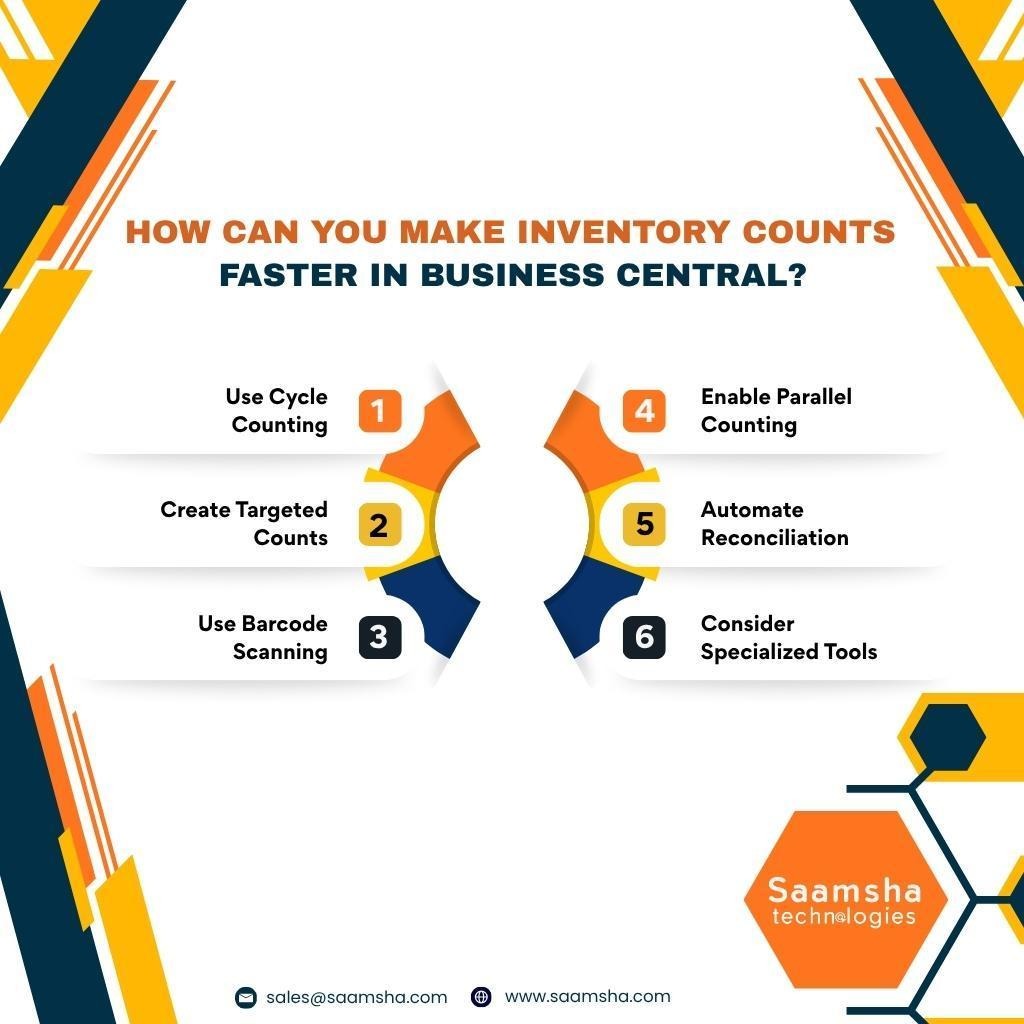
You can make inventory counts faster by combining Business Central’s native counting features with better counting methods and mobile data entry.
- Use Cycle Counting: Assign Count Period Codes such as FAST, NORMAL, and SLOW based on item turnover and value. Smaller, regular counts reduce the need for disruptive full-warehouse counts.
- Create Targeted Counts: You can use Physical Inventory Orders and Recordings to divide inventory by locations, bins, shelves, or item categories. This gives each employee a focused workload.
- Use Barcode Scanning: You need to replace manual quantity entry with handheld scanners or mobile warehouse devices. Barcode-based counting can reduce data-entry errors and accelerate counting.
- Enable Parallel Counting: Let multiple employees count different sections or sheets simultaneously instead of waiting for one person to finish.
- Automate Reconciliation: Use variance analysis to prioritize significant discrepancies and automate recounts where possible. Advanced tools can also transfer counts to journals and validate entries before posting.
- Consider Specialized Tools: For complex warehouses, you can use Advanced Inventory Count to support flexible count sheets, mobile scanning, multi-user counting, and faster reconciliation.
Want to make Business Central work better for your operations? At Saamsha Technologies, we provide implementation, support, consulting, and customization services to improve inventory management and streamline processes. Contact now!
How Does Advanced Inventory Count Improve Business Central?
Advanced Inventory Count helps you move beyond standard inventory-counting workflows in Dynamics 365 Business Central. Depending on the solution and its configuration, it can provide a more structured process for planning counts, assigning work, recording quantities, reviewing differences, and preparing adjustments for posting.
- Count with Multiple Users: You can let several team members enter counts on different sheets at the same time. This reduces waiting and helps you finish counts faster.
- Create Flexible Count Sheets: You can organize sheets by location, shelf range, vendor, posting group, or other item fields. This gives each counting team a focused list.
- Use Barcode Scanning: The solution works with tools such as Warehouse Insight and WMS Express, allowing you to count using phones or dedicated scanner devices.
- Find Important Differences First: Count difference analysis sorts discrepancies by value, helping you focus on the largest inventory exposures.
- Automate Recounts: You can generate recount sheets when quantities or values exceed your chosen thresholds.
- Reduce Posting Errors: The pre-posting test checks for blocked items, missing tracking, missing posting groups, and other issues before posting.
Final Words
Business Central provides useful standard counting tools, but you may need better processes when you manage multiple locations, large inventories, lot or serial tracking, or multiple counters.
Cycle counting, targeted count sheets, barcode scanning, and parallel counting can help you improve efficiency.
For more advanced requirements, Advanced Inventory Count solutions can provide additional capabilities, such as flexible count sheets, discrepancy analysis, structured recounts, and pre-posting validation, depending on the features available.
By improving how you plan, record, and reconcile inventory counts, you can reduce manual effort, identify errors earlier, and keep your inventory records more accurate.